
How to resolve incorrect inventory quantities in Sage 100.
From time-to-time Sage 100 can end up out of balance in the quantities displayed in item maintenance and inquiry. This most commonly occurs if a user’s session crashes while entering transactions such as sales orders and purchase orders.
View this Sage 100 step by step software tip in a video format (2:21)
View this Sage 100 step by step software tip with individual screen shots below.
In the below example several aspects of the quantities being displayed are incorrect for the item in question.
- On SO is listed as 1,200, while there are none showing in sales orders.
- The quantity On PO is listed as 10, as none are currently in purchase orders.
- The quantity available is calculated based on the incorrect On PO/On SO.
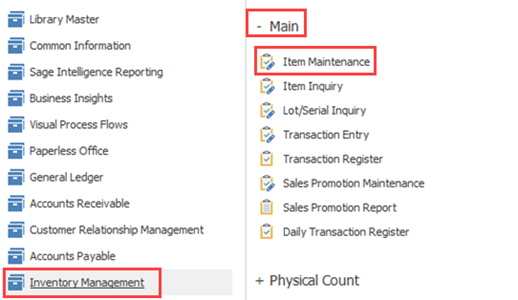

To fix this issue
Note: This utility should only be used when users are out of the system.
- Library Master > Utilities > Rebuild Sort Files

To fix the quantities
- Select Purchase Order as the module, then select the company code you want to fix.

- The following will pop-up when you hit proceed, click YES.

- For the Quantity on SO, re-run the utility against the Sales Order module.
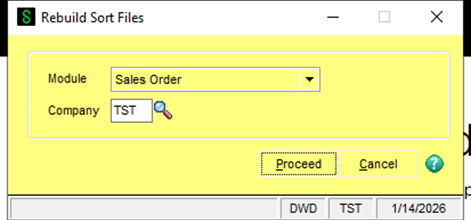
- The following will pop-up, click YES.

- After those have been run, you can verify the fix in Item Maintenance.

- If the PO/SO Quantity on that screen is correct; however, the available quantity is not. You can run that utility for Inventory Management as the module, and have it re-calculate the committed quantities.

- The following will pop-up, click YES.
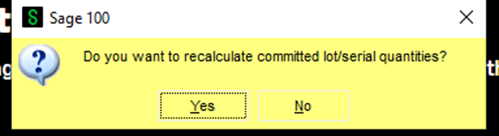
- You can then see the fixed result back in item maintenance.

For more information or assistance with your Sage 100 software, please contact our Sage 100 support team at 260.423.2414.
Register for our Sage 100 newsletter today!
Copyright 2026 DWD Technology Group | All rights reserved. This article content may not be reproduced (in whole or in part), displayed, modified or distributed without express permission from the copyright holder.
About the Author: Mike Roth

