
Where the Sage 100 Remit to Address function is and how to use it.
The Remit to Address function in Sage 100 is intended specifically for paying vendor invoices to a different Payee – or a different address.
Here are some examples of why the payee may be different than the vendor’s address.
- When vendors use a Lockbox with their bank to receive payments from your business.
- When vendors go into Receivership and the court mandates payments to the court, not the vendor.
- When vendors use Factoring. Factoring is a way vendors sometimes finance their AR. They sell their AR to a Factor for advances on their receivables, therefore you’re required to pay the Factor, not the vendor.
It’s very important to maintain purchasing history with the vendor. The Remit to Address allows you to keep all the activity with this vendor under the correct vendor’s name, but still direct payments to the correct address or payee.
There are three different addresses available for your vendor records:
- The vendor’s physical address (what you see on the Header Tab).
- The vendor’s purchase address (where you order and receive from), sourced by the More button in Vendor Maintenance, top right corner.
- The Remit to Address, sourced by the More button in Vendor Maintenance, top right corner.
If the remittance address is the same as the vendor’s physical address, then there is no need to modify the Remit to Address.
View this Sage 100 step by step software tip in a video format (3:55)
View this Sage 100 step by step software tip with individual screen shots below.
Learn how to use, change, and edit remit to address in Sage 100.
The first thing is to set up Remit to Address in a way that your company intends to use it.
- Open Sage 100.
- Accounts Payable > Setup > Accounts Payable Options.
- If Vendor information or anything else is being used by another user, you will get an error that only allows you to view the options.

- Click on the Additional Tab and find “Apply Changes to Remit to Address”.
- There are 3 selections. We suggest Prompt to give the flexibility of choice.
- No – This selection will not change the remit to address if the address is changed on vendor maintenance.
- Yes – This selection will change the remit to address if the address is changed on vendor maintenance.
- Prompt – Gives you the option to change the remit to address when the address is changed on vendor maintenance.

- Under Accounts Payable > Main > Vendor Maintenance.
- If the Accounts Payable Options are still open, this will cause an error and not allow you to access Vendor Maintenance.
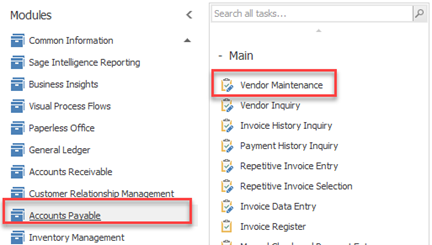
- Choose a company and you can edit the address.

- Click Accept.
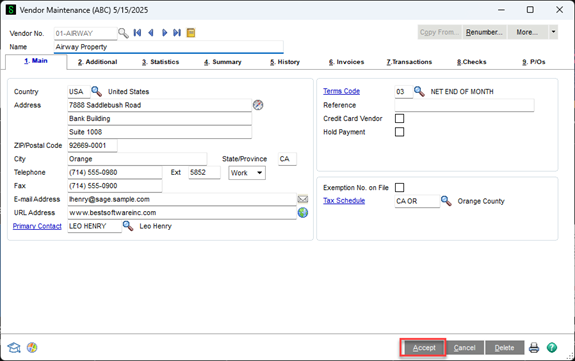
NOTE:
-
- If you selected ‘Prompt’ in AP/Setup/Options, a message asking, “Do you want to update the Remit to Address?”
- If you selected ‘No’ in AP/Setup/Options, you would not get this message, and the changes just made to the vendor address block will not change the remit to address.
- If you selected ‘Yes’ in AP/Setup/Options, you would not get the message, and any changes made to the address block of the vendor will immediately reset the Remit to Address to match the changes to the vendor’s address block.
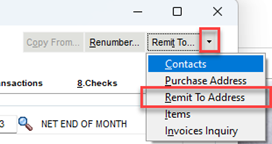
- Go to the top right and select the dropdown arrow.
- Select Remit to Address.


- You can also change the address in the Remit to Address Maintenance window as well.
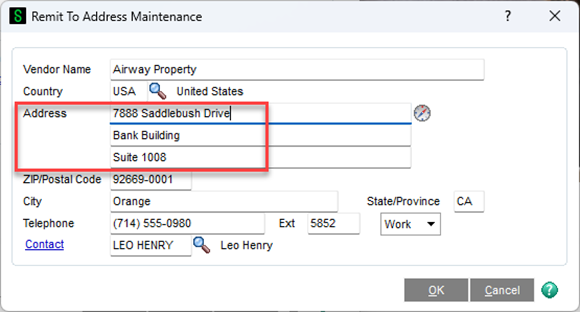
- You can see the regular address shows Road which is now set to Drive.

- Click Accept.
The remit to address is now set up but wait…there’s more!
Let’s look at how to use the remit to address.
- Accounts Payable > Check Printing and Electronic Payment > Check and Electronic Payment Processing.

- Check the Print Remit to Information, Enter the Vendor Name, then click Preview.
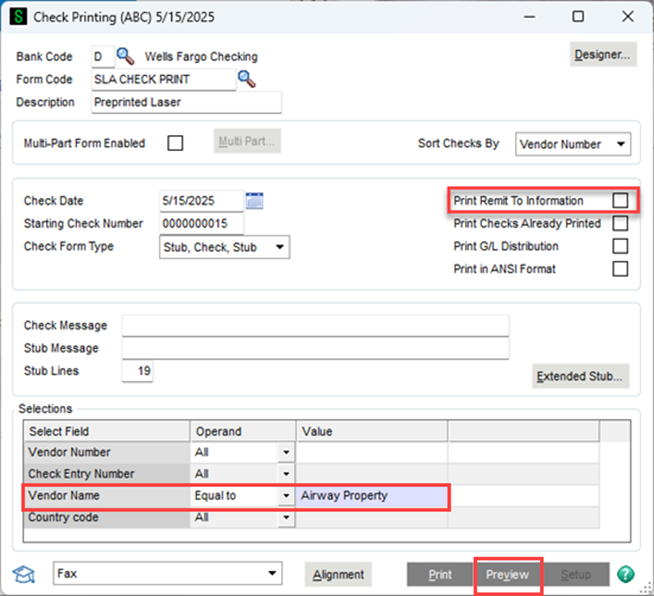

- Uncheck the Print Remit to Information, Enter the Vendor Name, then click Preview.

Now you know how to modify the Remit to Address, so the check is payable to a different Payee or a different address.
If you have questions regarding remit to address, please contact our Sage 100 support team at 260.423.2414.
Copyright 2025 DWD Technology Group | All rights reserved. This article content may not be reproduced (in whole or in part), displayed, modified or distributed without express permission from the copyright holder.
About the Author: David Overholt