
How to Apply Transaction Allocations in Sage Intacct
Sage Intacct offers many ways to streamline processes. Transactions allocations allow you to tell Sage Intacct how to distribute transactions across your dimensions automatically.
In the example below you will see how to set up transaction allocations definitions and use those to allocate your transactions.
*Note: you will need to make sure you turn on transaction allocations in the general ledger.
View this Sage Intacct step by step software tip in a video format (5:31)
View this Sage Intacct step by step software tip with individual screen shots below.
General Ledger – Transaction Allocation Setup
- General Ledger > Setup > Transaction allocations
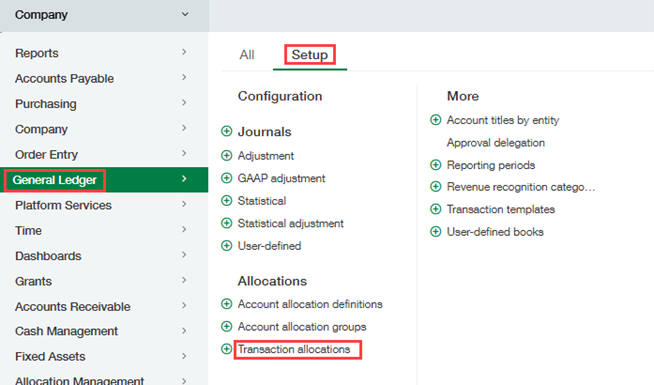
- Select Add to create a new transaction allocation.

- Fill in the information in each section.
- Allocation ID – The name you want the allocation to be (will appear in the drop-down menu).
- Allocate by – How you want the allocation to automatically distribute the transaction.
- Percentage: this will be distributed by the percentage you put in the entries table below.
- Exact Amount – Absolute: This will be the exact amount it distributes based on the entries table below.
- Fixed Amount with over/under logic: fixed amounts are applied to the transaction in the order they are listed in the entries table and then percentages are applied to any remaining funds.
- Entries – This is where you tell it the values and dimensions you would like to allocate by.
Entering in Transaction with allocations
Once your transaction allocation is set up you can use it when entering in transactions. I will show you how to use it when entering a journal entry.
- General Ledger > Journal Entries > Add
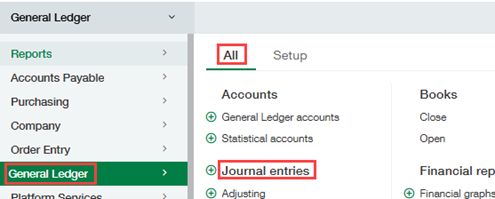
- Choosing the transaction allocation on a journal entry.
- Fill in the journal entry as you normally would and create a line in the entries section that you want to allocate. Choose the allocation you would like for this line of the journal entry.

- To see how the transaction was allocated click on the show details option.

- Based on how you set up the allocation it will show the amounts it has split the transaction by. In this example it is using the percentage option.

- If you would like to make adjustments to your allocation on this transaction you can click the customize allocation button to make those adjustments. Once you make the adjustments click apply and it will make those changes to your transaction.
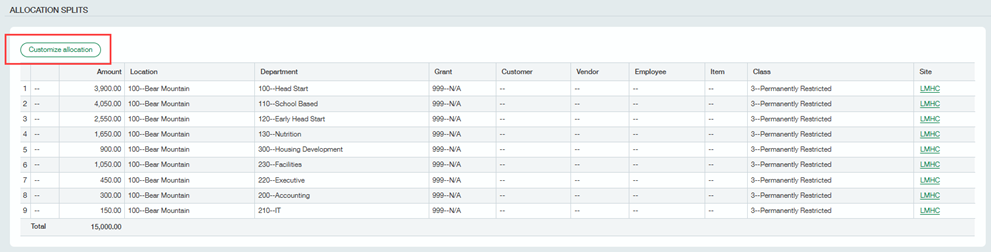

- Save your journal entry as you normally would.
You can use the allocation option on any transactions including AP bills. It will work the same way as the journal entry by having a drop down to choose from on the entry screen.
If you need assistance with creating transaction allocations in Sage Intacct or have any other Sage Intacct questions, please contact our Intacct support team at 800.232.8913.
Register for our Sage Intacct newsletter today!
About the Author: Cassie Rock

