
How to use checklists in Sage Intacct
Sage Intacct checklists provide a simple way to track recurring processes such as month-end close, year-end activities, or internal review steps. This guide walks through how to create and use checklists.
View this Sage Intacct step by step software tip in a video format (4:59)
View this Sage Intacct step by step software tip with individual screen shots below.
Checklist Setup
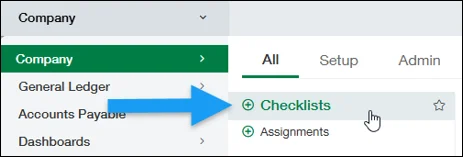
- Navigate to Company > Checklists
- Click Add (+ button) to create new checklists
- Enter a Checklist Category (e.g., Month End, Year End)
- Enter a Checklist Name (e.g., Month End Close – Accounting)
- Assign a Checklist Owner

Add Assignments to the Checklist
- Click Add Assignment within the checklist
- Enter Assignment Name (e.g., Reconcile Bank Accounts)
- Assign the assignment to a specific user
- Set the initial status

Define Checklist Statuses
Set up statuses to track progress. Common examples include:
- Not Started
- In Progress
- Complete

Using the Checklist
Once saved:
- Users update task statuses as work is completed
- The checklist provides visibility into progress
- Checklists can be reused for recurring processes such as month-end close
Example: Month-End Checklist
Best Practices
- Keep tasks specific and actionable
- Assign ownership for every task
- Use consistent naming conventions
- Review checklist status regularly during close

If you need assistance with creating checklists in Sage Intacct or have any other Sage Intacct questions, please contact our Intacct support team at 800.232.8913.
Register for our Sage Intacct newsletter today!
Copyright 2026 DWD Technology Group | All rights reserved. This article content may not be reproduced (in whole or in part), displayed, modified or distributed without express permission from the copyright holder.
About the Author: Luc Lothamer, CPA