
Wouldn’t it be nice to have a quick way to drop information from a list or a report into Microsoft Excel? Learn how to send data from lookup lists or reports directly to Excel.
Exporting Sage 100 data to Microsoft Excel.
Now that nearly every standard Sage 100 report is Crystal Reports-based, and with the updated look-up capabilities in Sage 100, it is becoming easier to export data directly into Excel. Any report that has been written in Crystal (whether it be a standard or a custom report) can have its data exported to Excel.
View this Sage 100 step by step software tip in a video format (4:38)
View this Sage 100 step by step software tip with individual screen shots below.
- To export data from a Crystal Report directly to Excel, select a report and PREVIEW it. Once the report is in its preview mode, click the Export icon as shown.

- Using the drop-down listing, select MS Excel.

- You’ll then be prompted to select some options related to exporting the data.

Once you’ve selected your options and click OK. Excel will open and the data from the report will be available to be edited or reformatted. Note, sometimes the formatting from Crystal Reports is not exact when translating to Excel. You might encounter some blank lines that you might not normally expect. This is due to the translation between Crystal and Excel. Customizing your Crystal Report to correlate to standard Excel format will help alleviate that issue.
You also have the ability to export lookup list information from Sage 100 to Excel. For example, open Inventory Maintenance and click on the lookup (F2) to display the list. Whatever information is being shown in the view (customized* or standard) can be exported to Excel. Just click on the Excel button at the bottom right.
*For more information on customizing lookups view our How to Modify the Lookup Window in Sage software tip.

- The last option that a user has available to export commonly used data is located in the Explore folder of most modules.

- Once you open the folder, you will see predefined views.

- After selecting a view, you can then export the data from the view into Excel, by choosing File > Export Options > Excel.
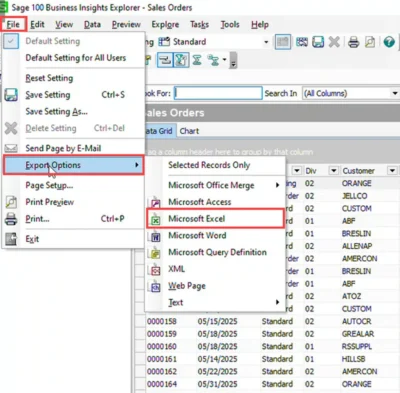
Again, presuming that you have Microsoft Excel installed on the machine from which you generate the export, Excel will open, and the data in the list will be exported.
Once the data is in Excel, it can be manipulated however the user sees fit.
Especially with the capabilities of exporting from Sage 100 lists, it becomes quite easy to extract data in the form of a report without having to spend hours creating custom reports to retrieve this information.
For more information or assistance with exporting information from Sage 100 to Excel, please contact our Sage 100 support team at 260.423.2414.
Register for our Sage 100 newsletter today!
Copyright 2023 DWD Technology Group | All rights reserved. This article content may not be reproduced (in whole or in part), displayed, modified or distributed without express permission from the copyright holder.
About the Author: Mary Hildinger